Post Header Integration
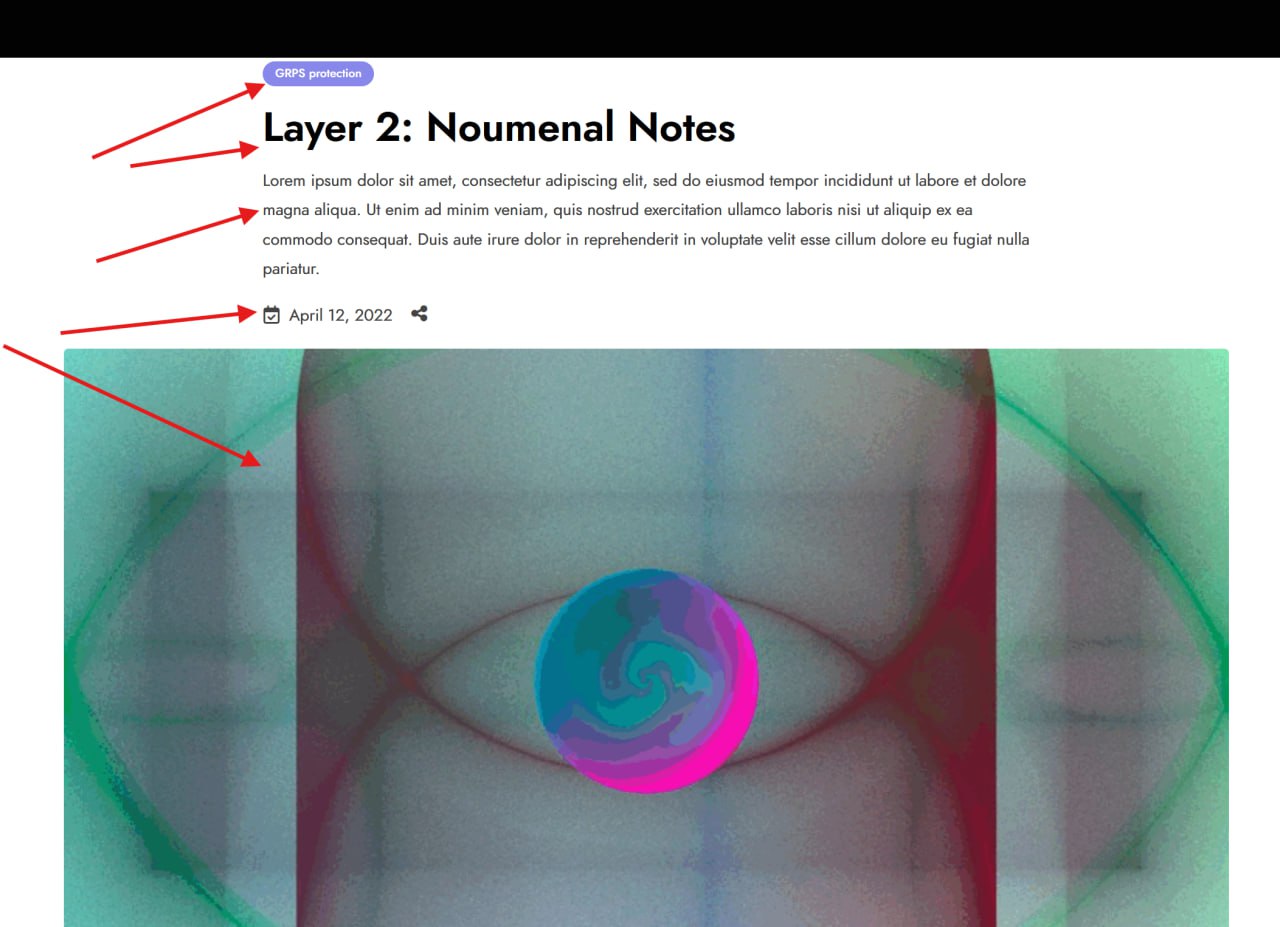
This guide details how to programmatically populate the visual "Header" section of pix-article posts (and standard posts), which corresponds to the visual layer commonly referred to as the "Layer 2" or "Hero Section".
Field Mapping
The visual elements map to standard WordPress core fields:
| Visual Element | WordPress Field | Database Column | Function |
|---|---|---|---|
| 1. Category | Taxonomy Term | wp_term_relationships | wp_set_object_terms() |
| 2. Post Title | Post Title | post_title | wp_insert_post() / wp_update_post() |
| 3. Excerpt | Post Excerpt | post_excerpt | wp_insert_post() / wp_update_post() |
| 4. Published Date | Post Date | post_date | wp_insert_post() / wp_update_post() |
| 5. Featured Image | Featured Image | _thumbnail_id (meta) | set_post_thumbnail() |
Programmatic Implementation
1. Creating/Updating the Post Object
The Title, Excerpt, and Date are set directly on the post object.
$post_data = array(
    'ID'           => $existing_post_id, // include only if updating
    'post_title'   => 'Layer 2: Noumenal Notes', // [2] Post Title
    'post_excerpt' => 'Lorem ipsum dolor sit amet...', // [3] Excerpt
    'post_date'    => '2022-04-12 12:00:00', // [4] Published Date (Y-m-d H:i:s)
    'post_status'  => 'publish',
    'post_type'    => 'pix-article', // Custom Post Type
);

// Insert or Update
$post_id = wp_insert_post($post_data);
2. Setting the Category
The "pill" at the top (e.g., "GRPS protection") is a Taxonomy Term.
- Taxonomy: Usually
category(Standard) orpix-portfolio-catdepending on theme config. - Function:
wp_set_object_terms
// Define the Category Name or ID
$category_name = 'GRPS protection'; // [1] Category
$taxonomy_slug = 'category'; // Check if 'pix-article' uses a custom taxonomy

// Resolve Term ID (create if doesn't exist)
$term_info = term_exists($category_name, $taxonomy_slug);
if (!$term_info) {
    $term_info = wp_insert_term($category_name, $taxonomy_slug);
}
$term_id = is_array($term_info) ? $term_info['term_id'] : $term_info;

// Assign to Post
wp_set_object_terms($post_id, array($term_id), $taxonomy_slug);
3. Setting the Featured Image
The background image (Hero Image) is the standard Featured Image.
$image_url = 'https://example.com/path/to/image.jpg'; // [5] Featured Image Source
$upload_dir = wp_upload_dir();
$image_data = file_get_contents($image_url);
$filename = basename($image_url);

if(wp_mkdir_p($upload_dir['path'])) {
    $file = $upload_dir['path'] . '/' . $filename;
} else {
    $file = $upload_dir['basedir'] . '/' . $filename;
}

file_put_contents($file, $image_data);

$wp_filetype = wp_check_filetype($filename, null );
$attachment = array(
    'post_mime_type' => $wp_filetype['type'],
    'post_title'     => sanitize_file_name($filename),
    'post_content'   => '',
    'post_status'    => 'inherit'
);

$attach_id = wp_insert_attachment($attachment, $file, $post_id);
require_once(ABSPATH . 'wp-admin/includes/image.php');
$attach_data = wp_generate_attachment_metadata($attach_id, $file);
wp_update_attachment_metadata($attach_id, $attach_data);

// Set as Featured Image
set_post_thumbnail($post_id, $attach_id);
Troubleshooting
- Category Not Showing?: If the "GRPS protection" pill doesn't appear, verify the Taxonomy Slug. Some themes treat
pix-articleas part of aportfoliologic and usepix-portfolio-catorpix-service-cat. Check the URL of the category page in the admin panel (e.g.,/wp-admin/edit-tags.php?taxonomy=pix-portfolio-cat). - Excerpt Not Showing?: Ensure the theme's
header.phporbg_image.phptemplate hasn't been modified to exclude the excerpt for this post type.